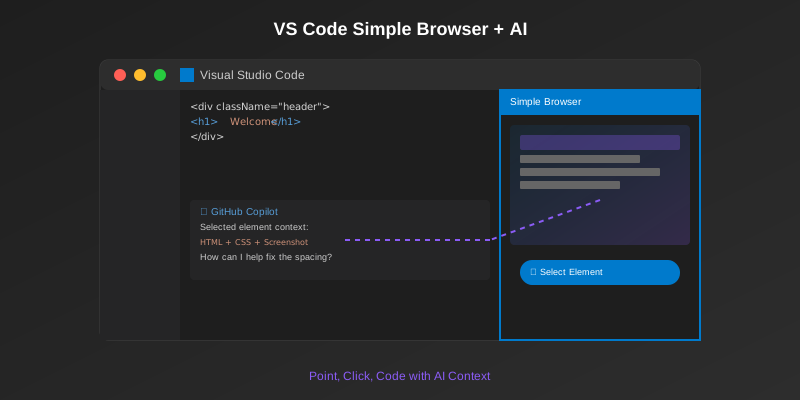

If you are using Visual Studio Code and GitHub Copilot, there is a powerful workflow you might be missing out on. It isn't a new extension you have to install—it is a built-in tool called the Simple Browser, and its deep integration with AI is a game-changer for frontend development.
This feature allows you to "point and click" to fix bugs and style your UI, essentially giving your AI eyes.
What is the Simple Browser?
The Simple Browser is exactly what it sounds like: a web browser built directly into VS Code. Instead of constantly switching windows between your code and Chrome or Edge, you can view your running application (e.g., localhost:3000) right inside a VS Code tab.
To use it, simply open the Command Palette (F1 or Cmd/Ctrl+Shift+P), type Simple Browser: Show, and paste your local URL.
The "Magic" Feature: AI Context Injection
While having a browser inside VS Code is convenient, the real power comes from its integration with GitHub Copilot Chat. When you use the Simple Browser, a floating toolbar appears that allows you to interact directly with the AI, bridging the gap between what you see and the code behind it.
Here is what makes this workflow special:
1. Point-and-Click Context
Visual bugs are notoriously hard to describe in text. Instead of typing "The header padding is too big," you can use the Select Element tool in the Simple Browser to click on the specific part of the page you want to change.
When you click an element, VS Code automatically packages three things and sends them to the AI chat:
- The HTML of the element
- The Matched CSS (including inherited styles)
- A Screenshot of the element
This gives the AI perfect context. You can simply click a messy navigation bar and type "fix the spacing," and because the AI sees the screenshot and code, it knows exactly what to do without vague descriptions.
2. "Attach Logs" for Instant Debugging
We have all been there: your app crashes, and you have to open the browser console, copy the error, and paste it into the chat manually.
The Simple Browser workflow streamlines this with an Attach Logs button. If you hit an error, one click grabs the console logs (including the error message) and attaches them to your chat prompt. The AI can then analyze the error context immediately and suggest a fix, saving you from the "copy-paste shuffle."
3. Continuous Selection
Need to refactor a list of items or check consistency across a grid? You can use Continuous Selection to click multiple elements one after another. VS Code will bundle the context for all selected items, allowing you to ask the AI to ensure styling consistency across different parts of your UI in a single prompt.
Why This Matters
This workflow significantly speeds up development because it removes the friction of context switching. You don't need to explain where the code is or what it looks like. You just show it.
Because the context provided is so precise (exact HTML/CSS + visual snapshot), even standard AI models perform exceptionally well, often understanding the intent better than they would with a text-only description.
How to Try It
- Run your web app locally (e.g.,
npm start) - Open the Command Palette in VS Code (
F1orCmd/Ctrl+Shift+P) - Search for
Simple Browser: Show - Enter your localhost URL (e.g.,
http://localhost:3000) - Look for the floating toolbar, select an element, and start chatting with Copilot!
Real-World Example
Let's say you're building a React component and notice the button spacing looks off. Instead of:
- Taking a screenshot
- Opening the browser console
- Finding the CSS class
- Copying the styles
- Explaining the issue to AI
You can simply:
- Click the button in Simple Browser
- Type "improve the spacing and alignment"
- Get precise code suggestions immediately
The Future of Visual Development
This feature turns VS Code from just a text editor into a visual development environment, making the feedback loop between code and UI faster than ever. As AI models continue to improve, this visual context will become even more powerful, potentially enabling:
- Automated design system compliance checking
- Cross-browser compatibility fixes with visual comparisons
- Accessibility improvements based on visual analysis
Conclusion
The Simple Browser might seem like a small feature, but combined with AI, it represents a fundamental shift in how we interact with our code. By giving AI visual context, we're moving closer to a future where development is more intuitive and less about describing problems in text.
Next time you're debugging a UI issue or styling a component, give the Simple Browser a try. You might find it transforms your development workflow in ways you didn't expect.
Watch It in Action
Want to see the Simple Browser workflow in action? Check out this demo video that shows exactly how the AI integration works:


